JDH Admin Console User Guide
Step-by-step instructions for the admin console. Only buttons you can actually click — no technical jargon.
1. About This Guide
Open the console → click a menu on the left → view lists on the right. Most pages are view-only; you cannot change order outcomes.
What can each role do?
Platform Admin
View all orders · Manual deposit · Review agent pool applications · Direct pool recharge/withdraw · Manage agents and sub-accounts
Agent Owner
View own agent orders · Manage bank accounts and sub-accounts · Submit pool applications · Change withdraw wait time
Operations Sub-account
View deposits / withdrawals / vouchers · Cannot change settings or manage accounts
Finance Sub-account
View credit ledger · Submit pool applications · View operation logs
Audience
Platform admins, agent owners, operations/finance sub-accounts
How to open
Open this HTML file in a browser; deploy together with the images folder
Screenshots
UI mockups match the real console layout so you can find buttons easily
2. Quick Start
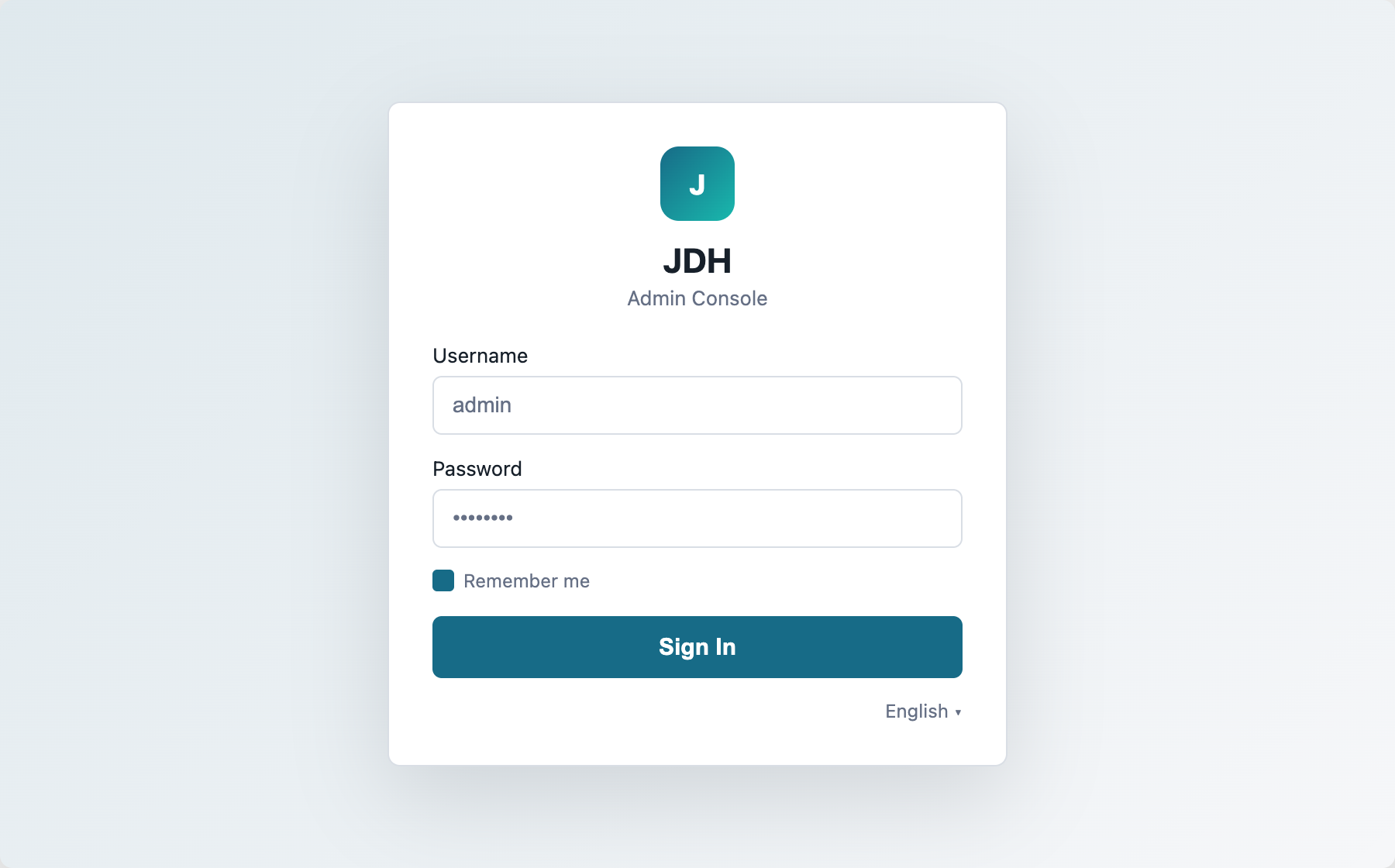
2.1 Sign In (3 steps)
- Open the admin URL in your browser (ask your admin for the link).
- Enter your username and password.
- Click Sign In to reach the Overview page. Your role appears as a colored tag in the top-right.
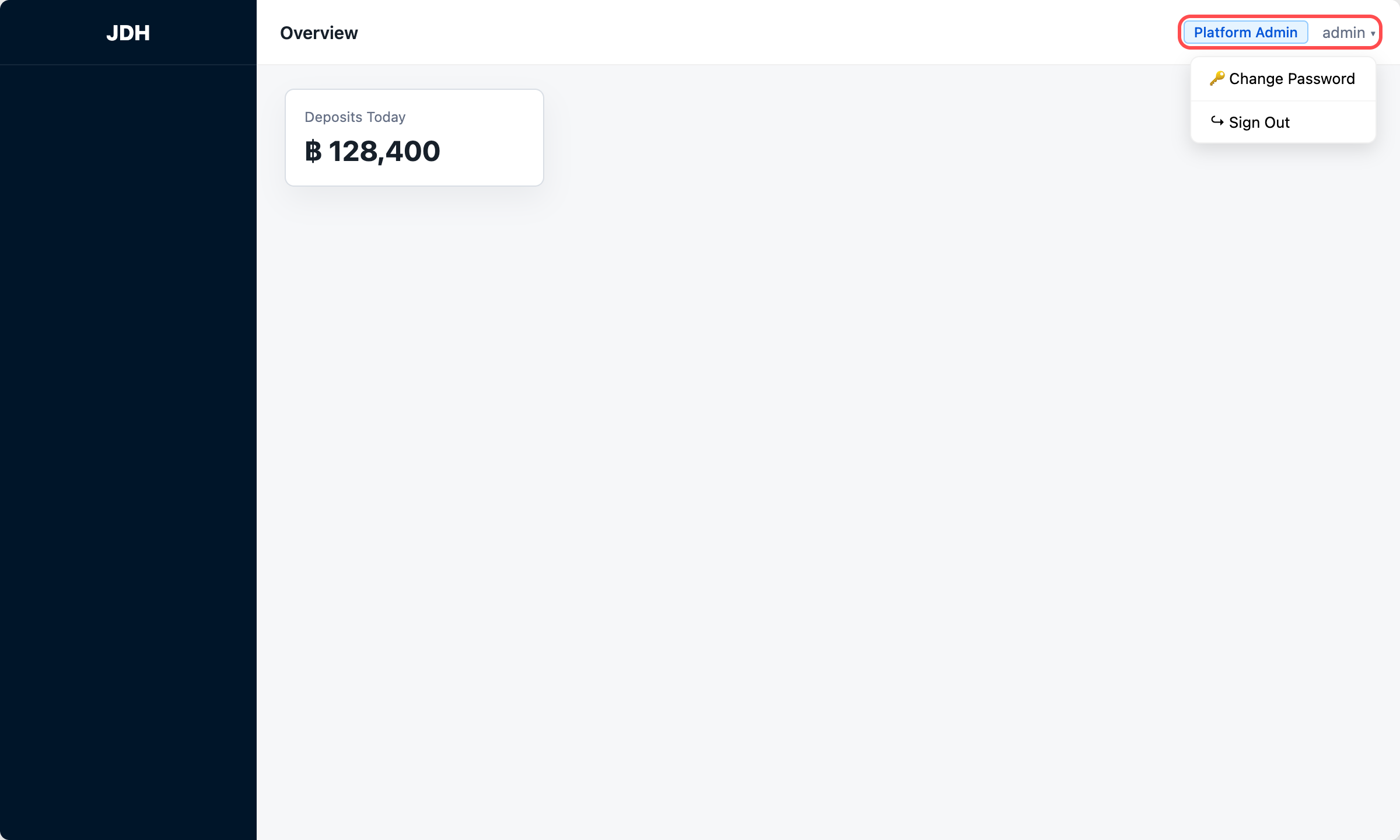
2.2 Change Password & Sign Out
Click the dropdown next to your username in the top-right:
- Change Password — enter current and new password; you must sign in again after a successful change.
- Sign Out — ends your session and returns to the login page.
2.3 Single Sign-On
3. Who Can Do What
✓ = can access and use; — = hidden or disabled.
| Feature | Platform Admin | Agent Owner | Operations | Finance |
|---|---|---|---|---|
| Operations Overview | ✓ | ✓ | ✓ | ✓ |
| Deposit orders (list/detail) | ✓ All | ✓ Own agent | ✓ Own agent | — |
| Manual deposit (platform only) | ✓ | — | — | — |
| Withdraw orders (list/detail) | ✓ All | ✓ Own agent | ✓ Own agent | — |
| Voucher review | ✓ | ✓ | ✓ | — |
| Agent management | ✓ | — | — | — |
| Sub-account management | ✓ | ✓ Own agent | — | — |
| Bank account management | ✓ | ✓ Own agent | — | — |
| Credit ledger | ✓ | ✓ | ✓ | ✓ |
| Direct pool recharge / withdraw | ✓ | — | — | — |
| Submit pool applications | — | ✓ | — | ✓ |
| Review applications (approve/reject) | ✓ | — | — | — |
| Settings | Order rules | Withdraw wait | — | — |
| Operation logs | ✓ | ✓ | — | ✓ |
4. Left Sidebar Menu
Four groups: Operations, Agents, Credit, System. Click to expand, then open a sub-menu page.
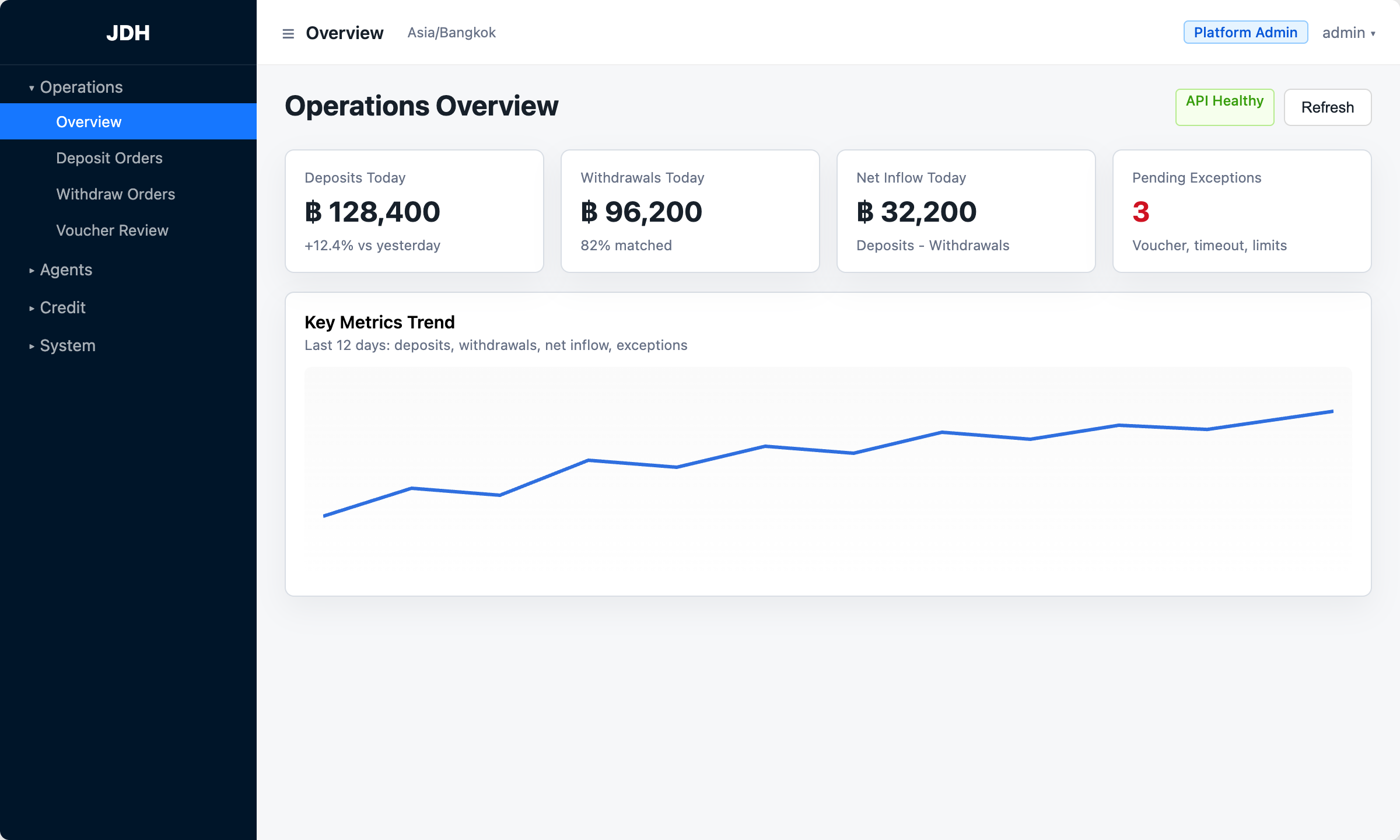
Menu reference
| Group | Sub-menu | Purpose |
|---|---|---|
| Operations | Overview | Today’s metrics, trends, exception summary |
| Deposit Orders | View player deposit progress | |
| Withdraw Orders | View player withdrawal progress | |
| Voucher Review | View transfer screenshots and issues | |
| Agents | Agents | Platform only: create/edit agents |
| Sub-accounts | Create operations/finance sub-accounts | |
| Bank Accounts | Agent receiving bank accounts | |
| Credit | Credit Records | Pool balance ledger |
| Recharge / Withdraw | Platform only: direct pool credit/debit | |
| Recharge/Withdraw Management | Agent applications + platform review | |
| System | Settings | Order timeouts (see §13) |
| Banks | Bank code dictionary | |
| Operation Logs | Admin audit trail | |
| Export Files | Download async export jobs |
5. Core Business Concepts
Understand how deposits, withdrawals, matching, and the credit pool relate.
5.1 End-to-end flow
5.2 What is the credit pool?
Each agent with pool access has a credit limit. Creating a withdraw order freezes quota; successful match and verification deducts it; expiry or cancel releases the freeze. Keep enough available quota or new withdraws cannot be accepted.
Balance
Total pool credit
Available
Balance − frozen, usable for new withdraws
Frozen
Held by in-progress withdraw orders
6. Deposit Orders — How to View
Go to Operations → Deposit Orders. Use this page to view deposit progress and details.
What to do
- Use filters (status, date) or search by order no. / player ID, then click Search.
- Click View on a row for receiving account, voucher status, and matched withdraw order.
- To add a remark, use the edit icon in detail (remarks only — does not change order outcome).
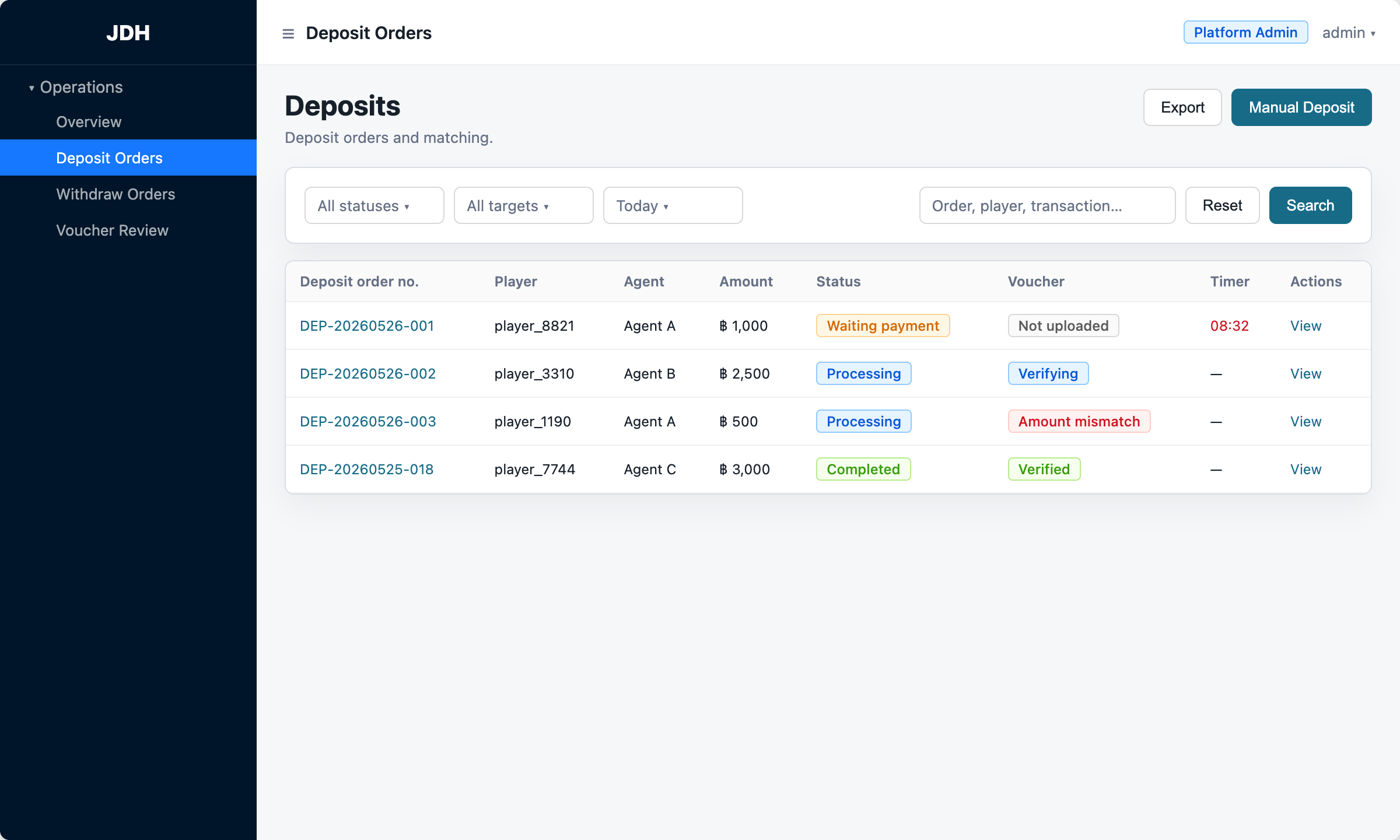
Status meanings
- Waiting payment — player has not paid yet; watch the countdown
- Processing — system is verifying voucher; wait
- Completed — deposit succeeded
- Expired / Rejected / Cancelled — order did not complete successfully
7. Withdraw Orders — How to View
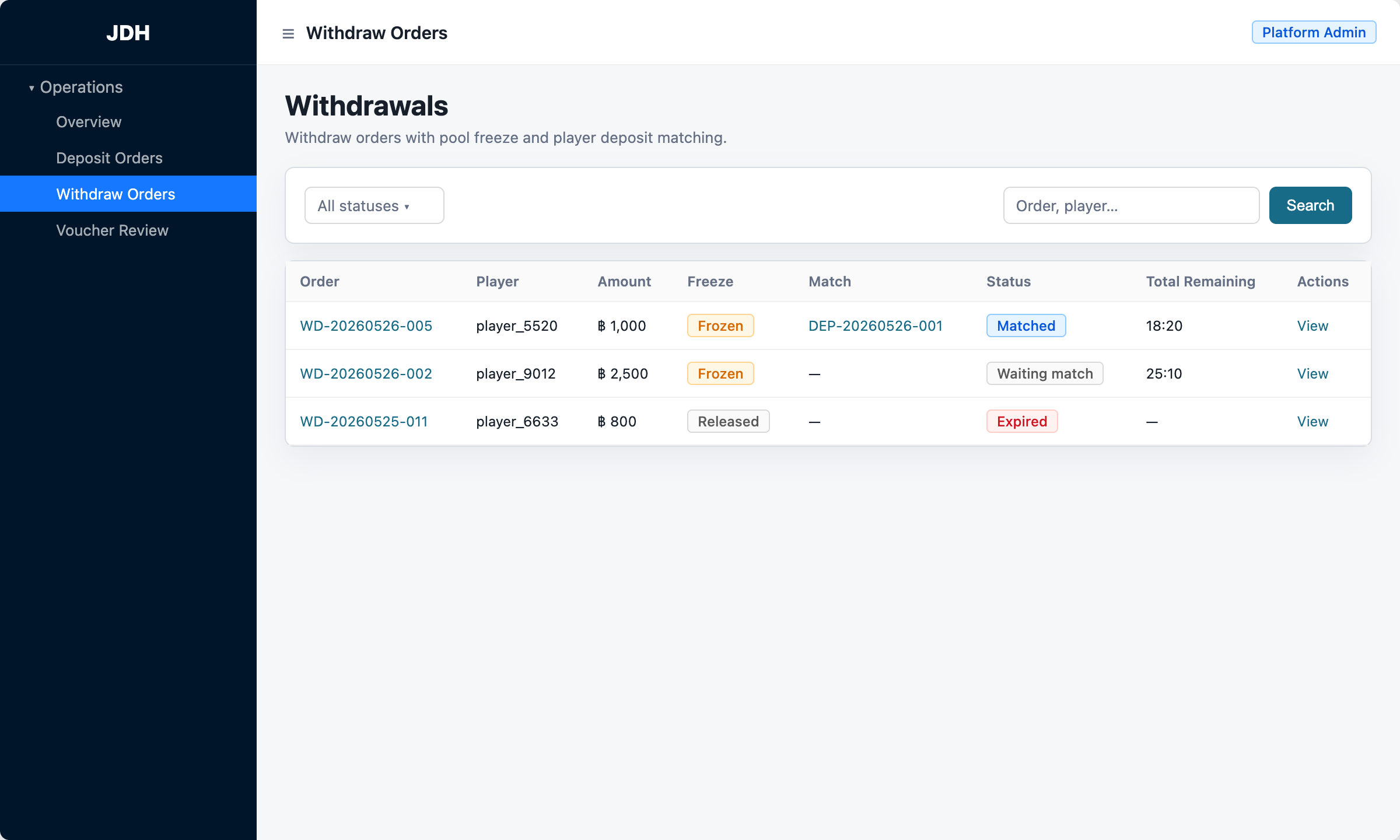
Go to Operations → Withdraw Orders. Use this page to view withdrawal progress and details.
- Filter by status, search order no., click Search.
- Click View for amount, matched deposit, and pool freeze status.
- Watch Total Remaining — if matching times out, status becomes Expired and frozen quota is released automatically.
8. Voucher Review
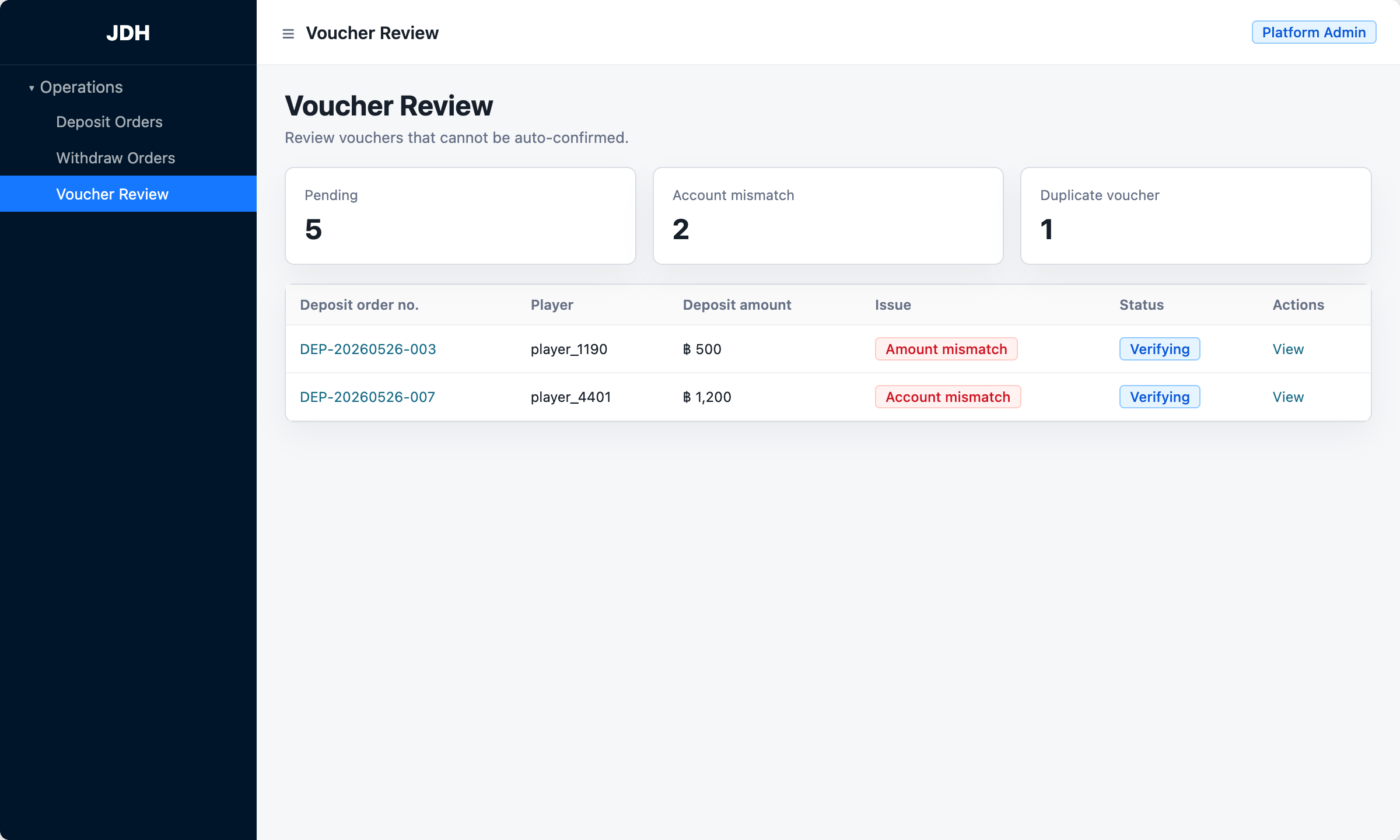
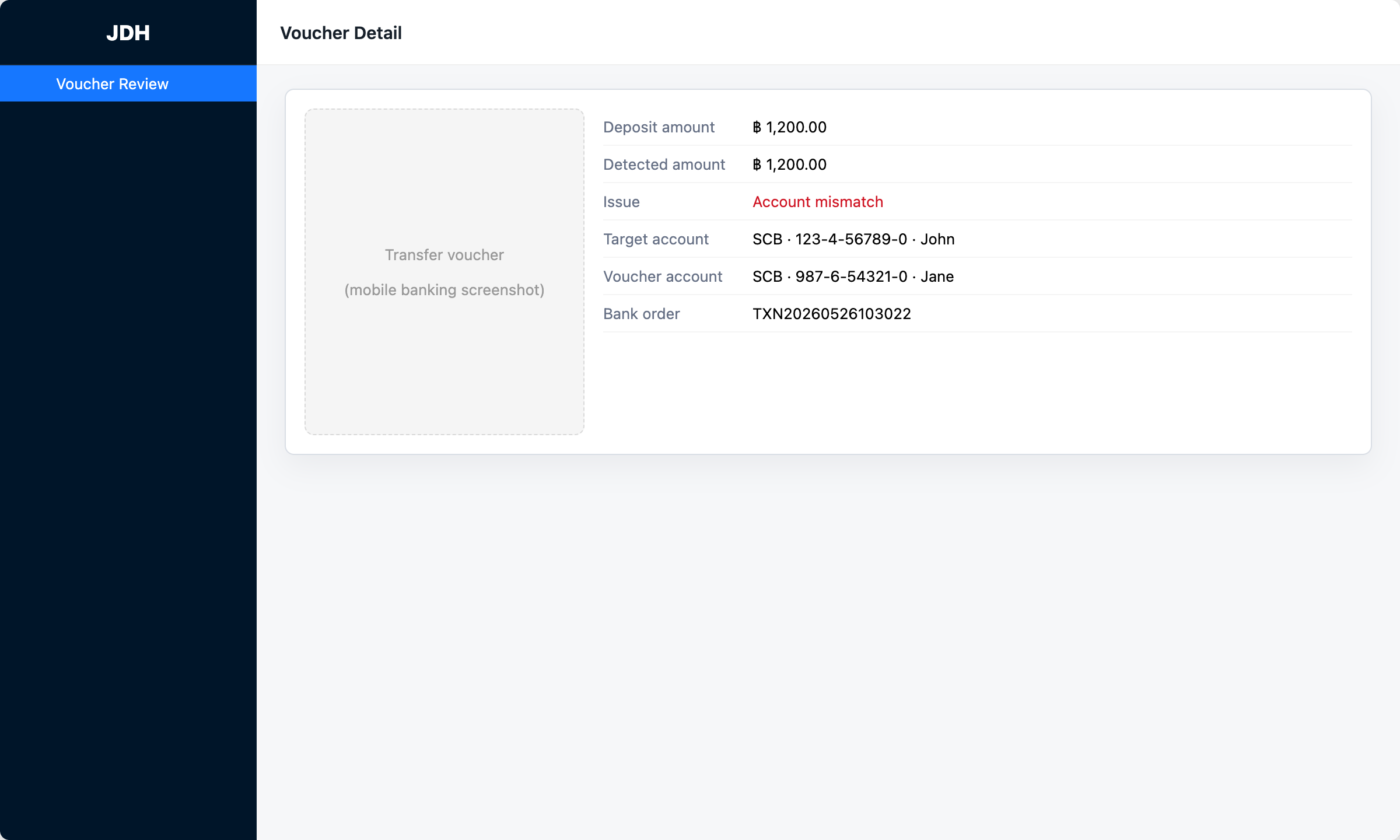
Go to Operations → Voucher Review. View uploaded transfer screenshots and parsed results.
- Check the three summary counts: pending, account mismatch, duplicate voucher.
- Find the order in the list and click View.
- In the modal, review the image and parsed fields, then close.
9. Credit / Pool
Menu: Credit group
9.1 Credit Records
See how pool balance changes: recharges, withdraw deductions, etc. Platform can filter by agent; agents see only their own.
9.2 Adding pool balance — two ways
| Who | How |
|---|---|
| Platform Admin | Credit → Recharge page, enter amount and confirm (instant credit) |
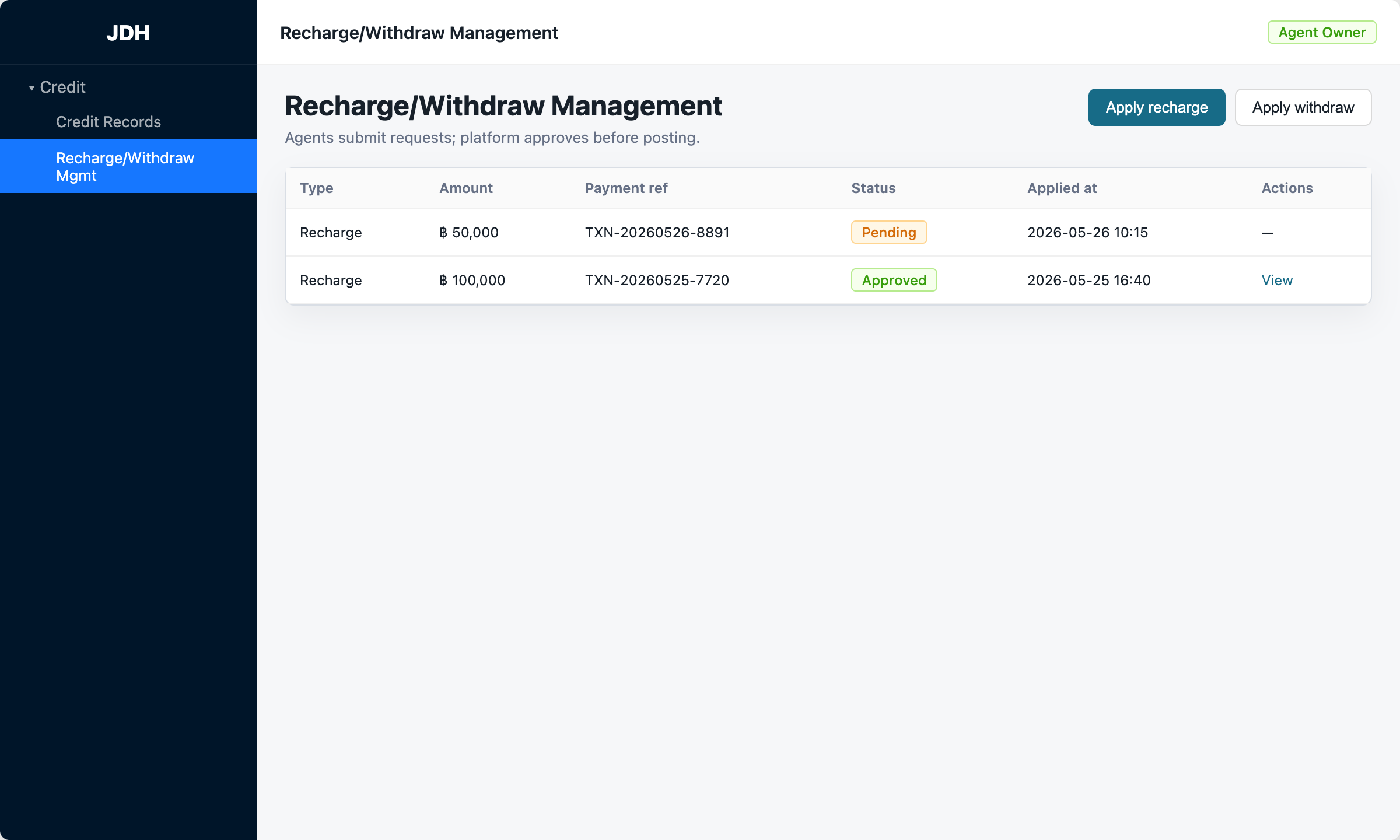
| Agent / Finance | Credit → Recharge/Withdraw Management → Apply recharge → wait for platform Approve |
9.3 Agent recharge application (step by step)
- Open Credit → Recharge/Withdraw Management, click Apply recharge.
- Enter amount, select receiving account, payment reference, submit.
- List shows Pending — platform admin clicks Approve or Reject.
- After approval, pool balance increases; if rejected, check the remark.
10. Agent Management
Path: Agents → Agents (platform admin only)
Main actions
- Add agent — name, code, login username, initial password, etc.
- Edit / Detail — pool balance, today’s deposits, match rate, bank account health.
- Enable / Disable / Risk suspend — control whether agent can take orders.
- Reset password — reset agent owner login password.
11. Sub-account Management
Path: Agents → Sub-accounts
Agent owners can create two sub-account types; platform admins can manage all agents’ sub-accounts:
Operations
View deposits/withdrawals/vouchers only; cannot change settings or manage accounts.
Finance
View overview and pool ledger, submit pool applications, view operation logs. Cannot handle orders or vouchers.
Create a sub-account
- Click Add sub-account, choose Operations or Finance role.
- Enter username, password, remark; platform admins also select the agent.
- Share credentials with the colleague; recommend changing password on first login.
12. Bank Accounts
Path: Agents → Bank Accounts
Add and edit bank cards agents use to receive player transfers. Set limits, priority, and enable — the system assigns them automatically.
- Per-account receive limit, priority, enable/disable.
- Platform admins manage all agents; agent owners manage their own only.
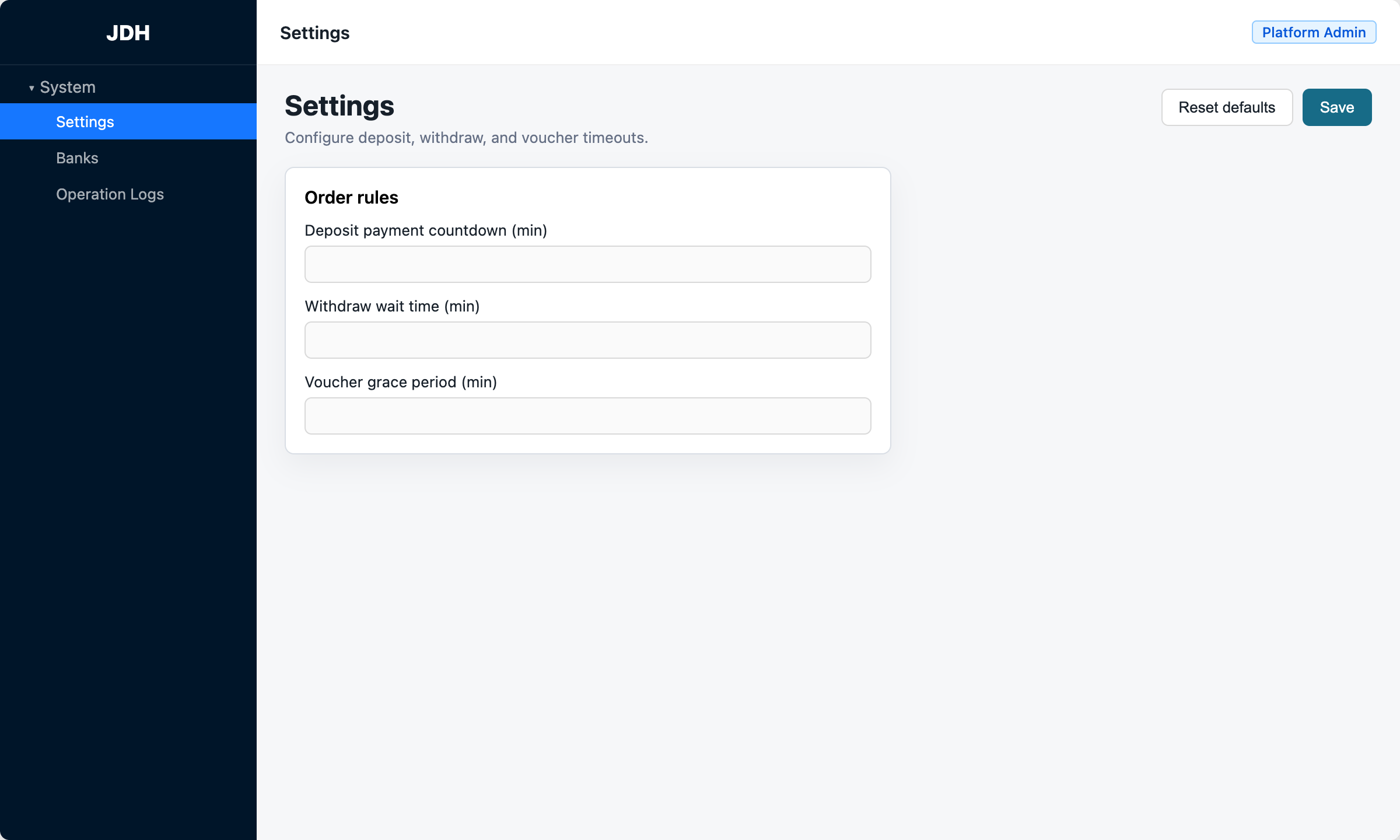
13. Settings
Path: System → Settings
13.1 Platform admin view
One panel only: Order rules. Click Save top-right after changes.
| Setting | Description |
|---|---|
| Deposit payment countdown (min) | How long the player has to complete payment |
| Withdraw wait time (min) | Max time to match a deposit (platform default) |
| Voucher grace period (min) | Extra minutes to upload voucher after timeout |
13.2 Agent owner view
Same Settings page, but you can only edit your agent’s Withdraw wait time (set when you need an override; leave blank for platform default). Other fields are read-only or hidden.
14. Banks / Operation Logs / Export
14.1 Banks
Maintain bank code and name dictionary for bank account dropdowns. Platform admins can CRUD; others read-only.
14.2 Operation Logs
Audit trail for settings changes, pool recharge/withdraw, application reviews, sub-account changes, etc. Filter by time, action type, operator. Platform sees all; agents see own scope.
14.3 Export Files
After starting export from deposit/withdraw/pool lists, download completed CSV files here. Large exports may take time to finish.
15. Quick Guide by Role
Platform Admin daily checklist
- Open Overview — check exception counts and Credit menu red dot.
- Review deposit/withdraw lists for abnormal orders.
- Go to Recharge/Withdraw Management and Approve or Reject Pending applications.
- When needed: manual deposit, manage agents/sub-accounts/bank accounts, change settings.
Agent Owner
- Monitor own agent deposits and withdrawals.
- Maintain Bank Accounts; if pool is low, Apply recharge.
- Create Operations/Finance sub-accounts for staff.
Operations Sub-account
Review deposit, withdraw, and voucher lists daily for anomalies.
Finance Sub-account
Review credit ledger; if balance is low, Apply recharge and wait for platform approval.
16. FAQ
Q: “Account signed in elsewhere” — what now?
Another session signed in with the same account. Sign in again; avoid sharing one login across the team.
Q: Signed out automatically?
Sessions expire (often after about a day). Re-sign-in is normal.
Q: Pool available balance too low — withdraw fails?
Increase agent credit: platform direct recharge, or agent submits application for platform review.
Q: Voucher stuck on “Verifying”?
Verification is in progress; please wait. If status does not change for a long time, provide the order no. to your tech team.
Q: List time off by one hour?
Console uses UTC+7 (Bangkok). Check your local timezone conversion.
Q: Missing a menu item?
Menus depend on role. Ask admin to confirm your role, or see §3 permission table.
17. Status Reference
Deposit order status
| Status | Meaning |
|---|---|
| Waiting payment | Player has not paid; see countdown |
| Processing | System is verifying voucher |
| Completed | Deposit succeeded |
| Expired / Rejected / Cancelled | Order did not complete successfully |
Withdraw order status
| Status | Meaning |
|---|---|
| Waiting match | Waiting for same-amount deposit |
| Matched | Linked to a deposit order |
| Completed | Withdrawal fully finished |
| Expired | Match timed out; frozen quota released automatically |
Voucher issue types
| Type | Meaning |
|---|---|
| Account mismatch | Payee on voucher ≠ assigned account |
| Amount mismatch | Detected amount ≠ order amount |
| Duplicate voucher | Bank transaction ID already used |
| Recognition failed | OCR could not read voucher |